
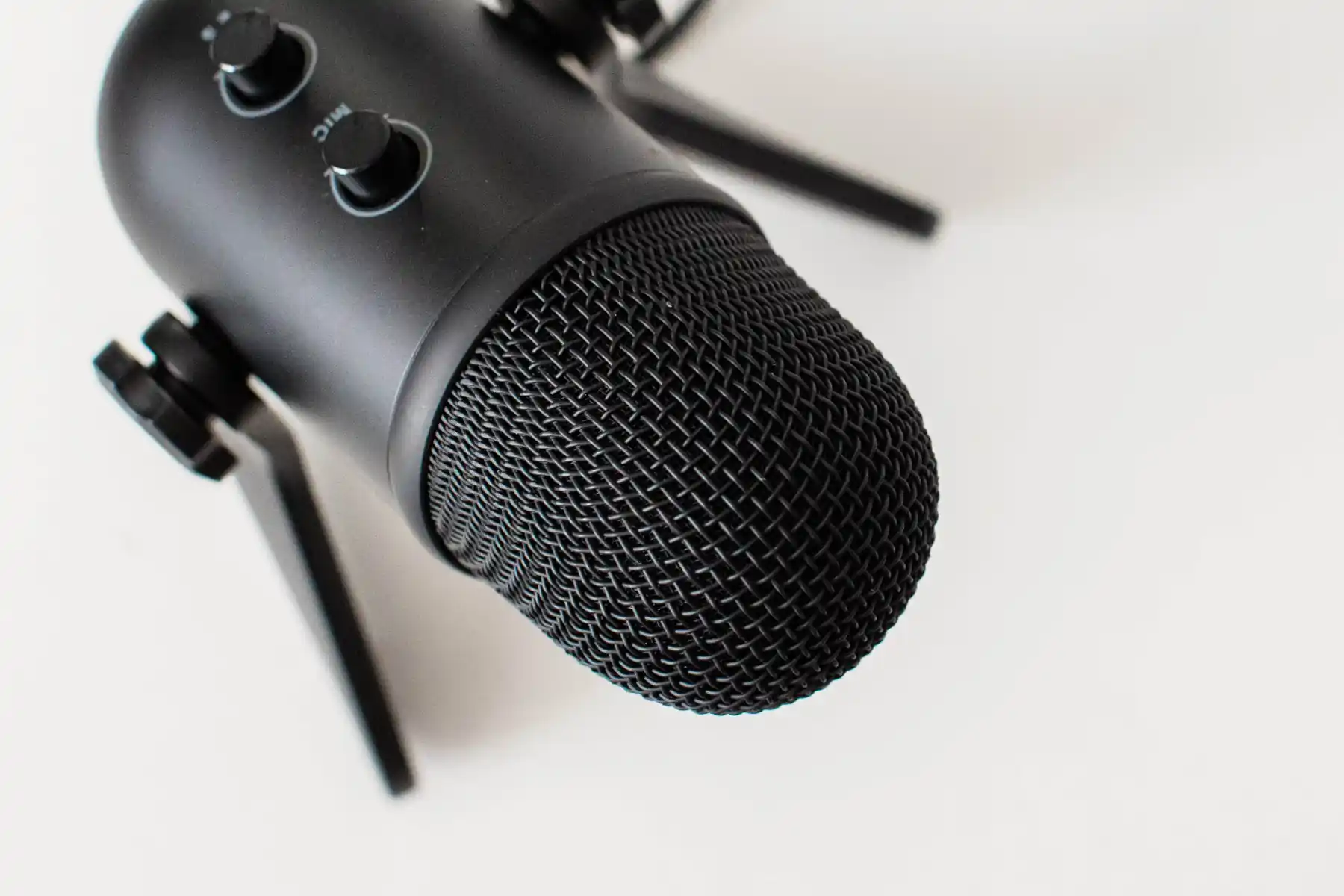
Podcasts have exploded in popularity in recent years and it’s never been easier to publish your own. If you are interested in creating a podcast, here’s a quick rundown of how you can do so and some of the tools to help.
Create cover art for your podcast
The first thing people see when they find your podcast in a podcast player is the cover art, so it’s worth investing some time to create a nice one to stand out. The design company Canva recently purchased the excellent Affinity software suite of design tools and made it free for everyone (previously it was about $300). It is great software for creating cover art and you can download it here https://www.affinity.studio.
Your cover art needs to be square in dimensions, starting at a minimum of 1400 x 1400 pixels, up to as large as 3000 x 3000 pixels. We recommend creating it as 3000 x 3000 pixels, it’s easy to shrink it later if you need to. In our opinion simple bold designs are the best, but you can browse for ideas on any podcast player or read what the design gods at Apple have to say about the topic: https://podcasters.apple.com/support/5514-show-cover-template.
Get an audio editor
To improve the quality of your podcast you will want to edit the final cut with an audio editor or digital audio workstation (DAW). An editor lets you produce short clips to share, get creative with non-linear content or edit out awkward unintentional moments from your recording.
There’s plenty of free and paid ones to be found on the internet. We like Reaper (https://www.reaper.fm), it’s easy to use and there’s good tutorials on YouTube. They give you a 60 day trial which is long enough to try it out and get comfortable with it. After, they ask for a one time payment of $60 USD.
An audio editor is also required for the next step.
Add intro music and other sound effects
If you want to add another layer of production quality to your podcast you can include a music track at the start and background sounds to set the tone of the content. Intro music adds personality and branding to your podcast but can get annoying very quickly, choose wisely! We also recommended keeping intro music very short, around 10 seconds! Background sounds can really enhance the mood of a podcast, especially those that emphasise storytelling and narrative styles.
Here are some audio libraries to explore:
Pixabay (https://pixabay.com/music)
Storyblocks (https://www.storyblocks.com/audio)
Create a Substack account to publish your podcast
Most people know Substack as a platform for writers, but they have expanded into podcasts as well, it’s free to create an account. If you want to charge for your content (which is optional), Substack gives you the tools to do so and takes 10% of your revenue for their services.
In your Substack account you can create multiple publications for different content. After creating your account, find the settings page for your profile and look for the section called Publications and click on create new (you might in fact get automatically directed to this section on account creation, it’s been a while since I created my account).
Next, you are asked to create a URL for your publication. This is the address where your podcast will be found on the internet. What you choose here will be added as a subdomain to Substack’s domain.
You probably want this to be the name of your podcast or as close to it as is possible. For example, if you want to call your podcast ‘Conversations With Steve’ and you add ‘conversationswithsteve’ as your URL your domain will become conversationswithsteve.substack.com. This is the URL you are choosing, not the name of your podcast. If you don’t get the URL you want, you can select something similar and still give your podcast the name you want. You can also change your URL later if you have trouble deciding.
Substack’s subdomains are getting taken quickly as the site grows in popularity. If you have a relatively generic, catchy or sought-after name it would be a good idea to check it’s available and claim it quickly.
Next you get the option to add an existing contact list if you have one. If you don’t, you can skip this.
When your publication is created, you will see a menu section called Content in the main page. Select podcast in this section and it will take you through the process of setting up a podcast in your domain.
Once complete you are ready to upload your first episode! Substack has a limit of 1 hour on new podcast episodes. You can customise your podcast’s homepage and upload your cover art from the settings. There’s also links to publish your podcast from Substack to Spotify and Apple Podcasts or share it via a feed.
If you want help with any step, feel free to reach out to us. We can assist with cover art, audio editing and sharing your podcast around the web.